
Identify the freight and connect it to the paperwork
A plain-paper identification label helps receiving staff match a pallet, carton or freight piece to its destination and order reference. This generator prints a destination, shipment reference, optional notes and an item sequence such as “Pallet 7 of 12.”
These are identification labels. They do not buy transportation, create a tracking number or generate a carrier barcode. They are not GS1-standard logistics labels or Serial Shipping Container Code (SSCC) labels. Keep any carrier-required label or standardized mark separate and readable.
Enter the destination and choose the item sequence
- Select pallet, carton or freight piece. The choice changes the label heading and sequence noun; it does not change shipping rules.
- Enter the destination or consignee name and address. Add a shipper name, shipment reference and purchase order reference if useful.
- Enter “Labels to print” for this batch, “First item number” for its starting number and “Total items in this shipment” for the denominator on every label.
- Add short identification notes, then review all labels. The last number in the batch cannot exceed the shipment total.
- Print on U.S. Letter at the supplied scale, or save the browser's print output as a PDF.
| Input | Accepted range or length |
|---|---|
| Labels per print job | 1–100, whole numbers only |
| First item number and total items | 1–999,999, whole numbers only; the batch must fit within the total |
| Destination name, shipper name, shipment reference, purchase order / order reference | Up to 80 characters each |
| Destination address | Up to 200 characters across no more than 4 entered lines |
| Additional notes | Up to 160 characters across no more than 3 entered lines |
The destination name and address are required for filled printing. Numbering is checked independently of the text. Reducing a print batch does not change the shipment's total count; that total should come from the actual packing plan.
Worked example: print pallets 7 through 9 of a 12-pallet shipment
Confirm the total pallet count
Suppose an approved packing arrangement holds 10 cartons per pallet and the order contains 120 cartons. In the pallet quantity calculator, enter order quantity 120 and capacity 10 for one order line.
Full pallets = ⌊120 ÷ 10⌋ = 12Remaining cartons = 120 − (12 × 10) = 0Total pallets = 12 + 0 partial pallets = 12The capacity of 10 is a supplied packing-plan value. The quantity calculator does not prove that those cartons fit or that the arrangement is safe.
Generate only the required batch
| Input | Value |
|---|---|
| Identification format | Pallet |
| Destination / address | Example Receiving; 200 Example Road, Springfield, IL 62701 |
| Shipment reference; purchase order | EX-204; PO-204 |
| Labels to print; first item; shipment total | 3; 7; 12 |
| Last number check | 7 + 3 − 1 = 9, which is no greater than 12 |
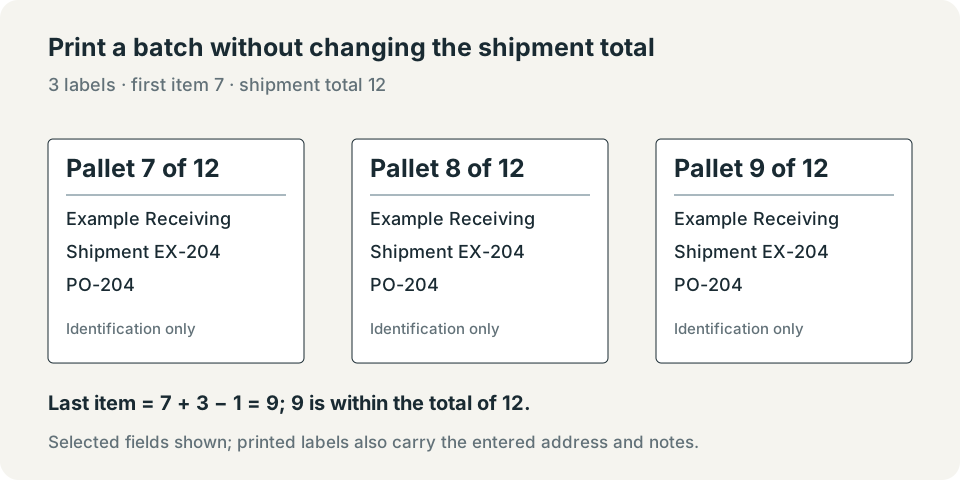
The output contains exactly Pallet 7 of 12, Pallet 8 of 12 and Pallet 9 of 12. All counts are whole numbers, so no rounding is applied. Increasing the batch to 7 while keeping the first number at 7 would end at 13 and is rejected for a 12-pallet shipment.
Check the printed label before attaching it
The layout produces one large plain-paper label per U.S. Letter page. It is not an Avery sheet or a thermal-printer stock template. Check the paper size, print scaling and browser headers and footers in print preview. Printer settings can affect the final page.
“Print blank template” makes one unfilled label while retaining the form entries. For filled labels, review the destination, reference and sequence on every page. Use a suitable attachment method for the package and handling environment, and follow the actual carrier's placement requirements.
If a note requests a service, also arrange that service with the carrier. A label reading “appointment required” does not create an appointment, and a plain-text handling note does not replace a required mark.
Control your entries and saved copies
The form processes entries in this browser tab. It does not send them to the website or a carrier, save them in browser storage or put them in the page URL. Reloading the page clears entered document information. “Clear entries” returns the form to its initial values.
Printed copies and PDFs saved through your browser are under your control. File-reference fields contain names only; they do not upload or embed the actual files. See the privacy policy for website-request and email information.
Print labels that match the confirmed packing plan
Confirm the shipment total first, then review the destination, reference and item sequence on the generated labels. Keep the carrier's required labels and service arrangements in place; these identification labels support that process without replacing it.
FAQs
Do these labels provide a tracking number?
No. They contain plain identification text and no tracking barcode, carrier-issued number, GS1 identifier or Serial Shipping Container Code (SSCC).
What does “Total items in this shipment” mean?
It is the denominator printed on each label. Enter the confirmed total from the packing plan; the batch size only controls how many labels this print job creates.